
If you’ve wondered whether Apple Watch and golf really mix, the short answer is yes, and it’s better than you think. With the right watch model and a solid golf app, you’ll get quick yardages, reliable shot tracking, and post-round insights that actually help you score lower. This guide walks you from setup to your first data-driven round. You’ll learn how to pick the best watch/app combo, dial in accuracy, manage battery for 18–36 holes, and turn stats into smarter practice. No fluff, just the workflow we recommend to make your Apple Watch a dependable caddie on your wrist.
Pick The Right Apple Watch And Golf App For Your Game
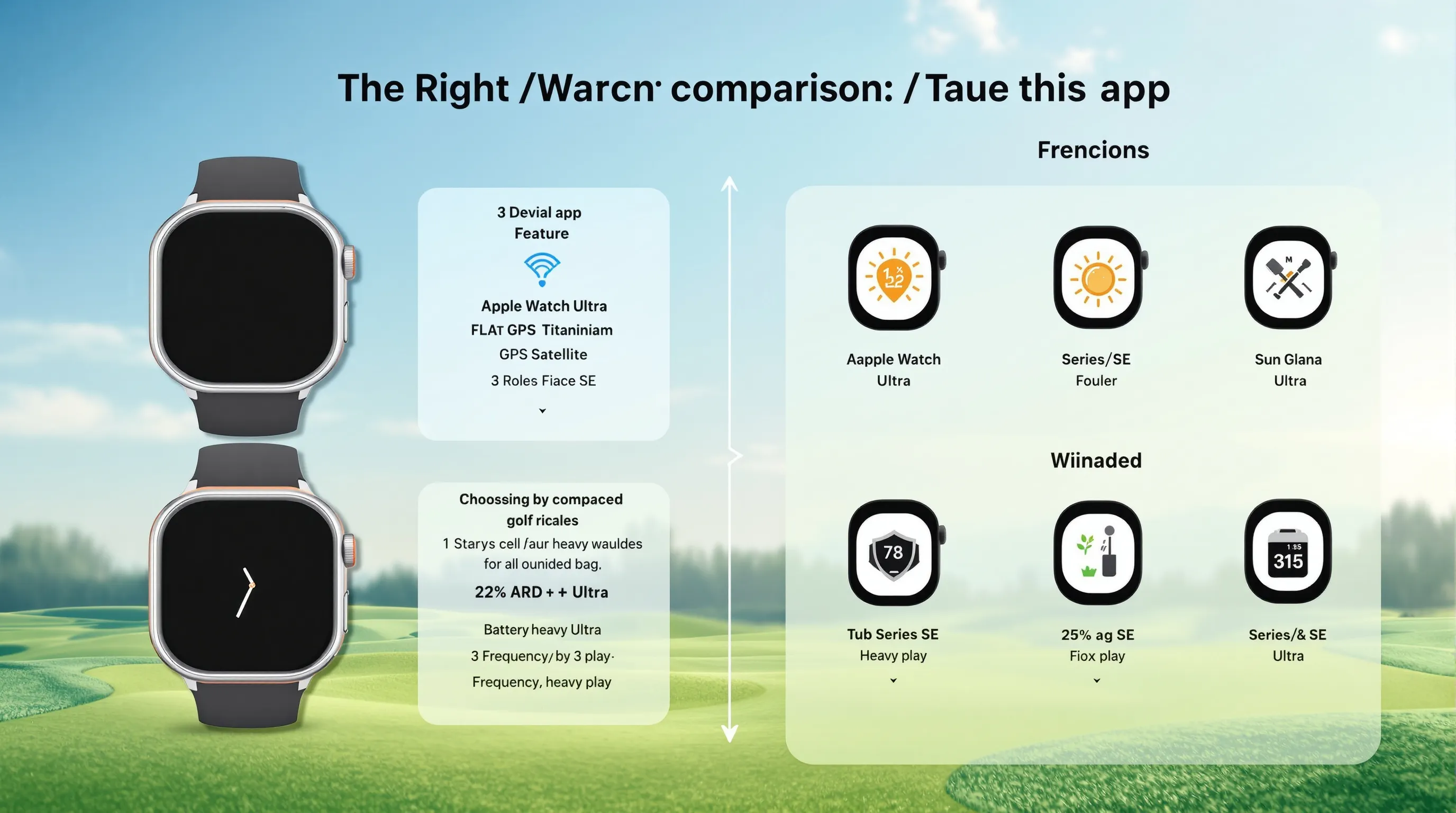
Match Features To Your Needs: GPS, Battery, Durability
If you play weekly and want all-day stamina and sunlight readability, Apple Watch Ultra 2 is the standout: titanium build, flat sapphire crystal, and Apple’s brightest display for glare. Expect roughly 36 hours of daily use or up to ~12 hours of outdoor GPS workouts, enough for 18–36 holes if you manage settings. Series 9/8 (and SE) are great for casual rounds and range sessions, but plan ahead on battery.
Choose Your Golf App: Arccos, Golfshot, 18Birdies, TheGrint, Or Apple’s Workout
- Golfshot: Best all-rounder on watch + iPhone. Auto Shot Tracking, Swing ID, and Strokes Gained. Pro ~ $69/year.
- Arccos: Official PGA TOUR game tracker with shot tracking, precise yardages, and club recs from the wrist.
- TheGrint: Free GPS on iPhone + watch, with solid scoring and stats.
- GolfLogix: Detailed hole maps, carries, and green heat maps.
- 18Birdies: Strong GPS, shot planning, and scorekeeping.
- Apple’s Workout: Minimal, but fine for heart rate/pace and basic GPS distance via compatible apps.
Confirm Compatibility: iPhone Version, Subscription Costs, Sensors
Update to the latest iOS/watchOS for the best GPS and sensor accuracy. Check each app’s subscription tier and whether features like auto-shot detection require extras (e.g., club tags). Ensure your iPhone and watch support precise location and motion calibration.
Get Your Watch And iPhone Ready Before You Play
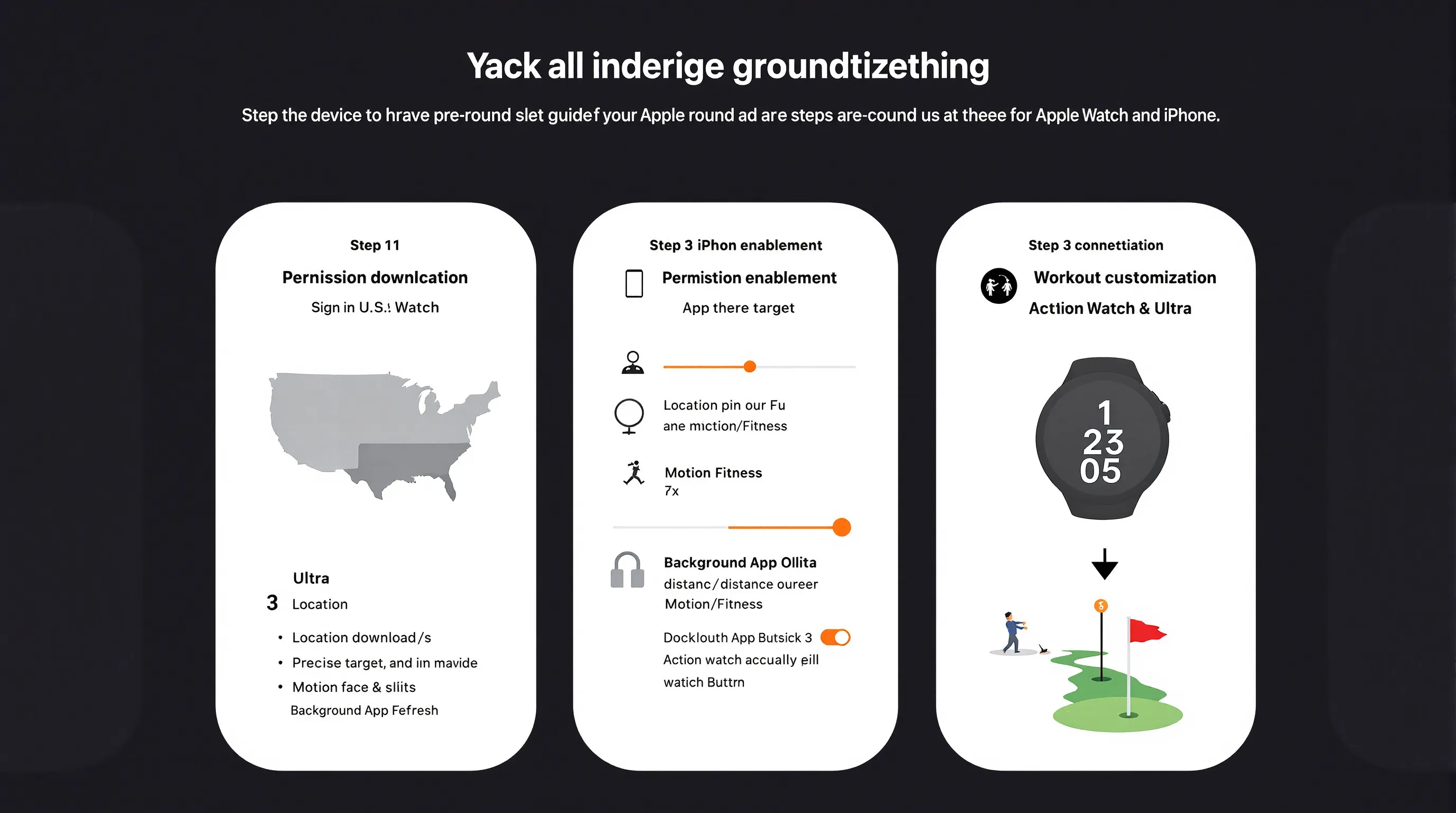
Update watchOS/iOS And Install Your Golf App
Open Settings to update iOS and watchOS. Install your chosen golf app on both iPhone and Apple Watch. Sign in, then grant permissions on first launch.
Enable Location, Motion/Calibration, And Background App Refresh
On iPhone: Settings > Privacy & Security > Location Services > your golf app > Allow While Using + Precise Location. Enable Motion & Fitness and Background App Refresh so shot detection and auto-advance keep working.
Set Up Health, Workout Views, And Action Button (Ultra)
In the Watch app, configure Workout views to include distance, heart rate, and splits. On Ultra/Ultra 2, assign the Action Button to start your golf workout/app for one-press launching on the first tee.
Configure Your Bag, Handicap, And Course Data
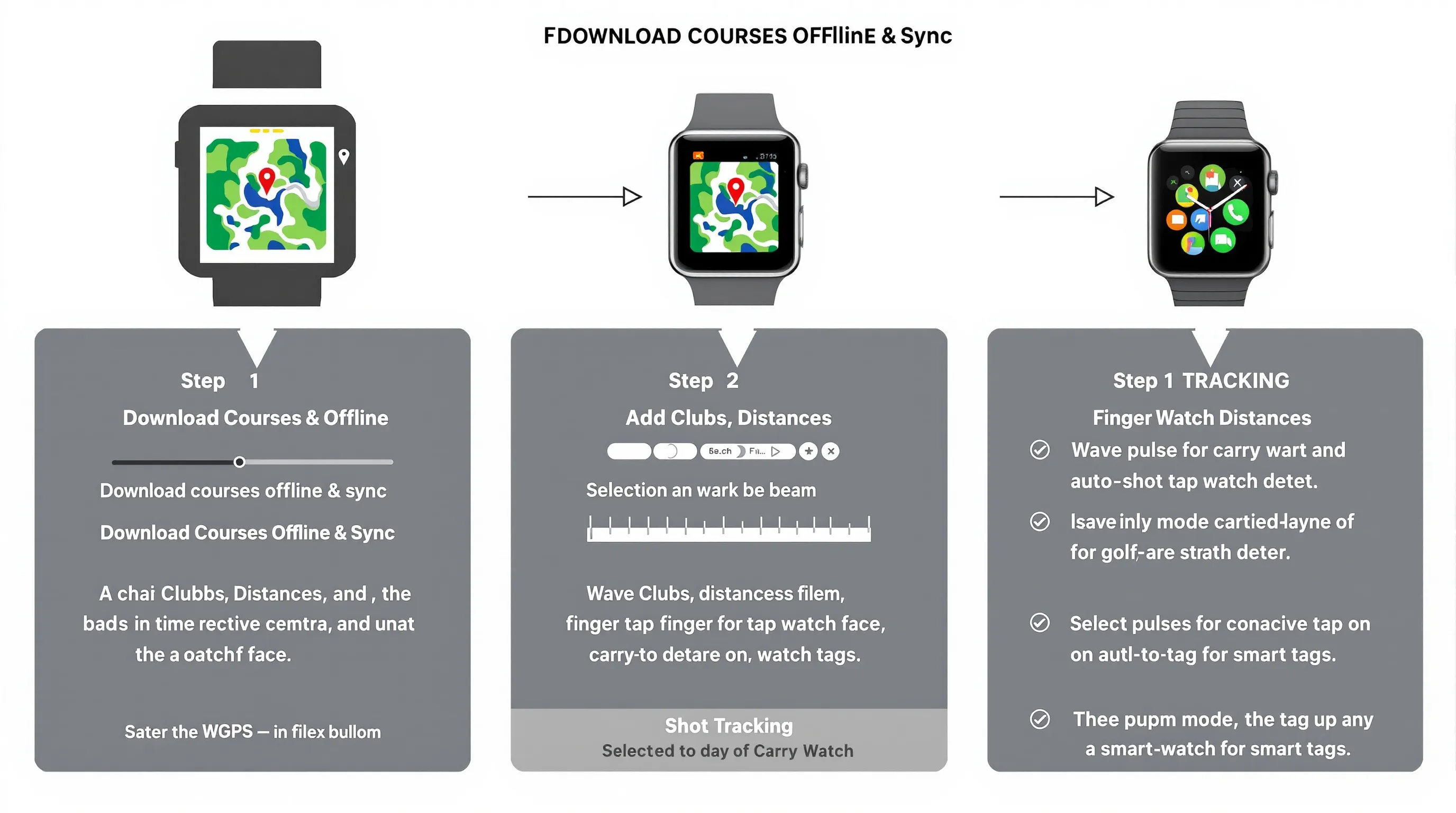
Download Courses Offline And Sync To Watch
In your golf app, search your course(s), download maps, and sync them to the watch. Offline maps reduce lag and save battery when cell service is spotty.
Add Clubs, Distances, And Shot Tracking Preferences
Enter your bag (lofts or typical carry distances). Pick how you’ll track shots: auto-detect, tap-to-tag on the watch, or add optional smart tags. Set putt tracking to ask after each hole.
Customize Yardage Units, Hazards, Wind, And Green Views
Choose yards or meters, enable hazard and layup targets, and tweak wind display if your app provides it. For putting, decide if you want simple front/middle/back or detailed green heat maps (GolfLogix) based on pace-of-play needs.
Calibrate For Accurate Yardages And Swing Metrics
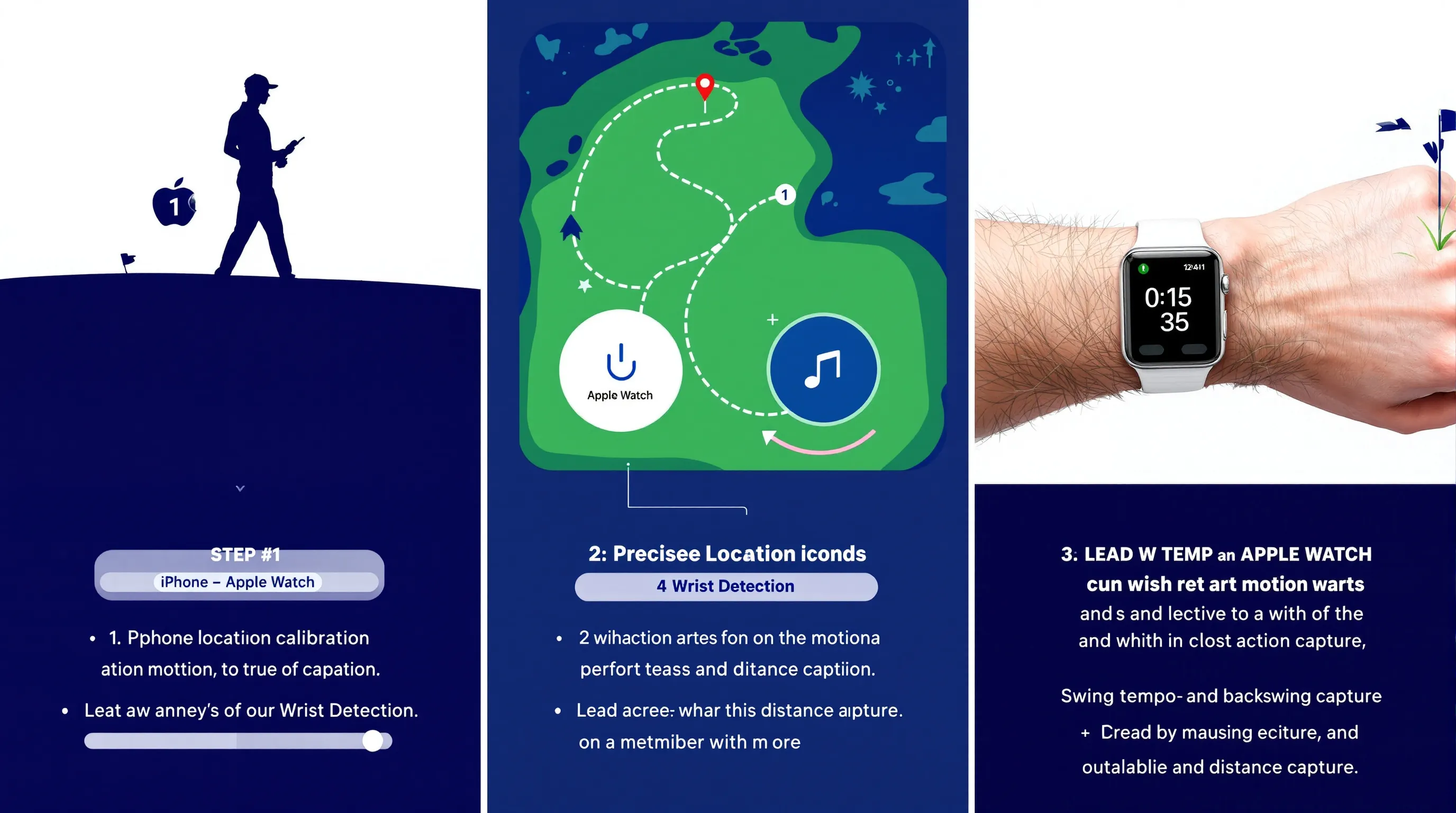
Walk A Few Holes With iPhone For Initial GPS Calibration
For your first round, keep your iPhone in-pocket for a few holes. Many apps refine GPS and auto-shot models from phone + watch data before you go fully watch-only.
Turn On Precise Location And Wrist Detection
Precise Location improves green and hazard distances. Wrist Detection ensures the watch locks properly between shots and records movements reliably.
Fine-Tune Swing Tempo/Backswing (If Your App Supports It)
If your app offers swing metrics (e.g., Golfshot Swing ID), take a few practice swings. Confirm the watch is snug on your lead wrist so accelerometer/gyroscope data stays clean.
Play A Round: Your On-Course Workflow From Tee To Green
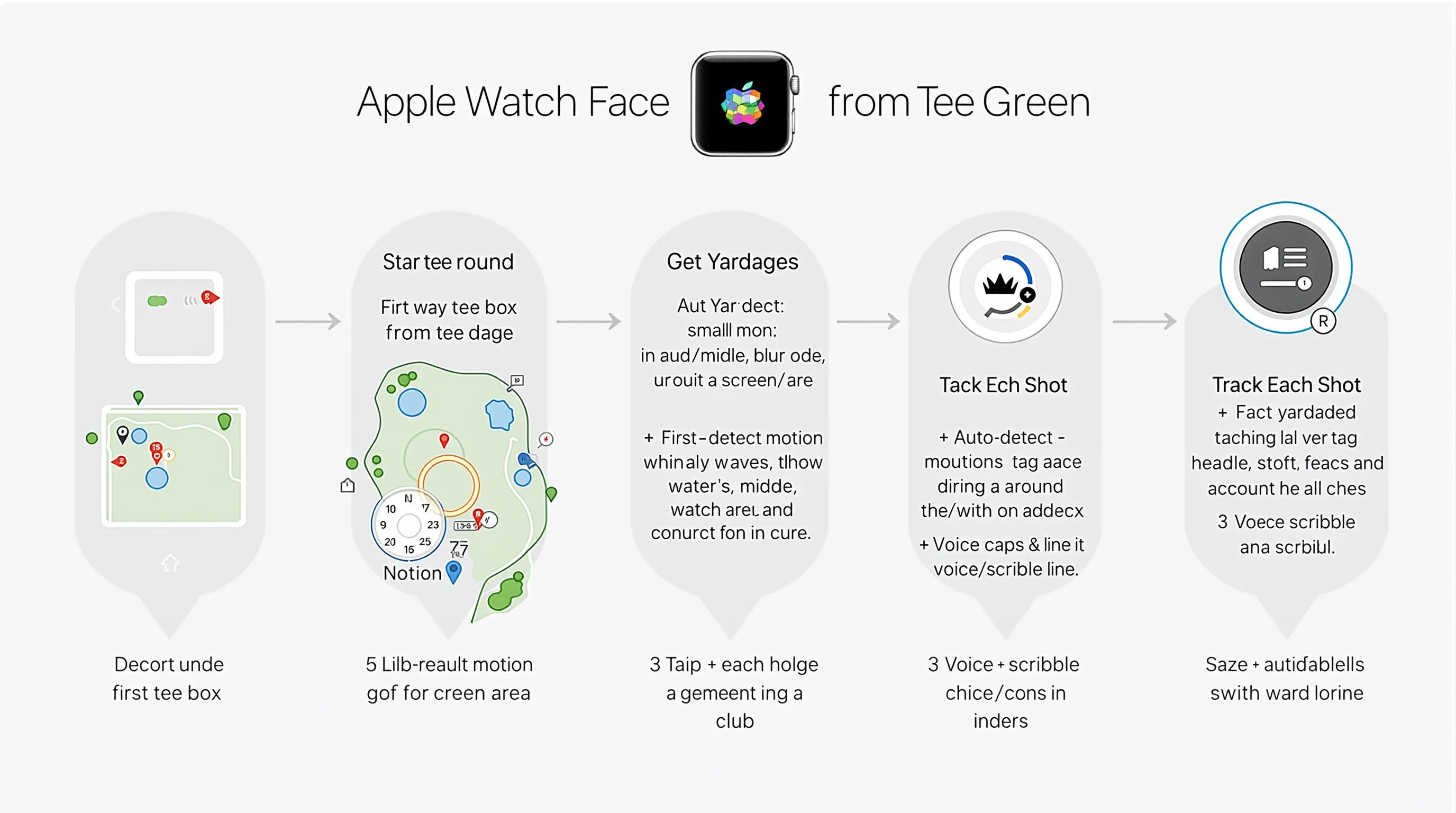
Start The Round, Select Tees, And Auto-Advance Holes
On the first tee, open the app, pick your tees, and enable auto-advance. Glance down between shots, no fumbling with your phone.
Get Yardages: Front/Middle/Back, Hazards, Layups
Your Apple Watch shows quick distances to the green (front/middle/back). Many apps add hazards, carries, and suggested layups. Use the crown or swipe to move the pin or preview landing zones.
Track Each Shot: Tap-To-Tag, Auto-Detect, Or Voice Input
- Auto-detect: Hands-off, then confirm after each hole.
- Tap-to-tag: Tap club on your watch before the shot.
- Voice/Scribble: Fast edits if you hit a provisional or punch-out.
Putting And Pin Position: Record Putts And Adjust Pin For True Stats
Log first putt distance and putts per hole. If your app supports it, drag the pin location post-hole, huge for approach and short-game accuracy.
Log Penalties, Drops, And Missed Shots Quickly
Use quick-add for penalties or unplayables so score and Strokes Gained stay honest.
Use Health Features: Heart Rate, Pace Of Play, And Safety
Monitor heart rate and walking pace. On Ultra, use Waypoints/Backtrack if you’re on a sprawling property. Fall Detection and Emergency SOS add peace of mind during solo twilight rounds.
Boost Battery And Performance For 18–36 Holes
Use Low Power Modes And Reduce Screen-On Time
On Ultra/Series, enable Low Power Mode during long rounds. Shorten Wake Duration and use raise-to-wake sparingly to cut screen drain.
Pre-Download Courses And Limit Cellular Pings
Download maps over Wi‑Fi before you leave. If you have cellular, consider disabling it during play or restrict background data, GPS works without constant network access.
Optimize App Settings: Haptics, Auto-Shot Sensitivity, Map Detail
Reduce haptics and map detail to what you need. If auto-shot is missing chips or adding phantom swings, adjust sensitivity or switch to quick tap-to-tag for wedges and putter.
Review Your Round And Improve With Data
Sync Stats: Fairways, GIR, Putts, Strokes Gained, Club Distances
After the round, sync to your phone. Review fairways hit, GIR, putts, and Strokes Gained. Confirm or edit any questionable shots so your baselines are trustworthy.
Spot Trends And Set Goals: Miss Patterns, Approach Buckets, Short Game
Look for patterns: common miss left with driver, short on approaches from 125–150, or three‑putts from 20–30 feet. Set one or two goals for the next week.
Build Practice Plans From Weak Areas And Track Progress
Turn trends into drills: alignment sticks for driver path, wedge ladder drills from 30–90 yards, or lag putting gates at 20–40 feet. Revisit stats every 3–5 rounds to measure changes.
Troubleshoot Common Golf + Apple Watch Issues
Inaccurate Yardages Or Hole Not Advancing
Recalibrate: walk a couple holes with iPhone in pocket. Confirm Precise Location is on and courses are downloaded. If a hole won’t advance, manually select the next hole and re-enable auto-advance.
Missed Or Duplicate Shots In Auto-Tracking
Tighten the band so sensors read motion correctly. Lower auto-shot sensitivity for practice swings. For partial shots around the green, consider tap-to-tag.
Battery Drain Or Overheating On Sunny Days
Use Low Power Mode, dim brightness, and reduce map animations. Keep the watch out of direct sun when stationary, rest it in shade on the cart or under a towel.
Connectivity Glitches Between Watch And iPhone
Ensure Bluetooth is on and the devices stay within range. Restart both if the watch app freezes, then resync the round data before continuing.
When To Upgrade: Series vs Ultra For Dedicated Golfers
What Ultra Adds: Brighter Screen, Bigger Battery, Action Button
Ultra/Ultra 2 deliver class-leading outdoor visibility, longer GPS runtime, dual-frequency GPS for improved accuracy around trees/buildings, and the Action Button for quick starts.
When Series/SE Are Enough: Casual Rounds And Range Days
If you mostly play 9–18 on weekends or hit the range, Series 9/8 or SE give you excellent GPS distances and scoring, just mind battery and screen brightness on summer afternoons.
Accessories That Help: Bands, Power Banks, Club Tags
- Sport Loop or breathable band: stays snug without sweat-slip.
- Slim power bank: top off between rounds.
- Smart club tags (where supported): more reliable auto-shot detection and club-by-club stats.
Conclusion: Your Next Round With Apple Watch Starts Here
Recap The Setup, Play Flow, And Post-Round Wins
Pair the right watch with the right app, update software, and preload your course. Calibrate with your iPhone, then let the watch handle quick yardages, simple shot logging, and stress-free scoring. After the round, use Strokes Gained and club distances to focus practice.
Next Steps: Try A Practice Round And Share Your Data-Driven Tips
Do a low-stakes practice round to test auto-shot settings and battery tweaks. Then share what worked, your settings, favorite app views, and any “saved a stroke” moments. Apple Watch and golf can be a killer combo when you set it up once and keep learning from your data.