
Thinking about upgrading and want the short version on Apple Watch 10 compatibility? Here’s the bottom line: Apple Watch Series 10 plays best with newer iPhones, keeps your old bands useful, and continues Apple’s eSIM-first approach for cellular. But a few details, especially carrier band lists, still depend on Apple’s final spec sheets and your local carrier. We pulled together what’s confirmed, plus the gotchas we see when helping readers set up and switch watches.
iPhone And watchOS Requirements
Supported iPhone Models And iOS Versions
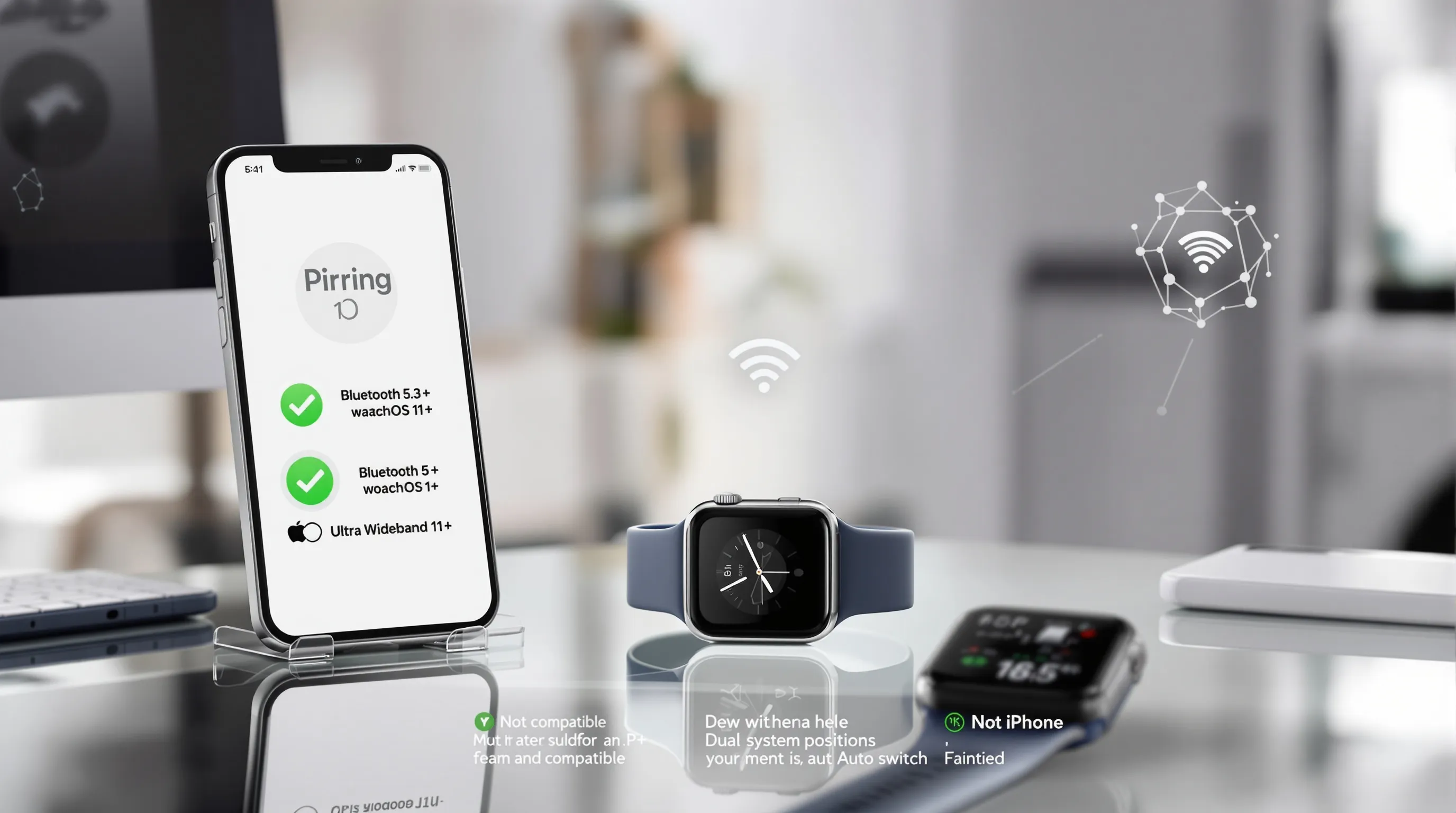
Apple Watch Series 10 requires an iPhone XS, XS Max, XR, or any newer iPhone running iOS 18 or later. If you’re on iPhone X or earlier, you won’t be able to pair or set up a Series 10, time to upgrade the phone first. The watch itself runs watchOS 11 or later. Practically, this means:
- iPhone XS/XS Max/XR and all newer models = compatible (with iOS 18+)
- iPhone X and earlier = not compatible
Also key: Apple Watch isn’t a standalone device for setup. You’ll need that compatible iPhone to pair, update, and manage apps and services. Keeping both iPhone and watch updated avoids quirky Bluetooth drop‑offs and app sync hiccups.
Bluetooth, Wi‑Fi, And UWB Notes
Series 10 supports Bluetooth 5.3 and Wi‑Fi 4 (802.11n). In daily use, Bluetooth handles most phone‑watch communication and audio accessories: Wi‑Fi steps in when your iPhone’s out of range but the watch can see a known network. There’s also a second‑generation Ultra Wideband (UWB) chip for precise Find My and proximity interactions, handy for pinging your phone or unlocking a UWB‑aware car or door lock.
For positioning, Series 10 supports L1 GPS plus GLONASS, Galileo, QZSS, and BeiDou. Translation: reliable location tracking in most regions, better route locks in cities, and more consistent outdoor workouts.
Pairing Limits And Dual‑Watch Use
You can pair multiple Apple Watches to a single iPhone and switch between them. Only one watch is active at a time, but Apple’s Auto Switch usually hands off to the watch you’re wearing. Great if you swap between a sport band beater and a dressier setup. There’s no published hard cap on the number of watches you can pair, but performance and storage sanity say: keep it reasonable. You can’t pair one Apple Watch to multiple iPhones at once.
Cellular And Carrier Compatibility
Supported LTE Bands And eSIM
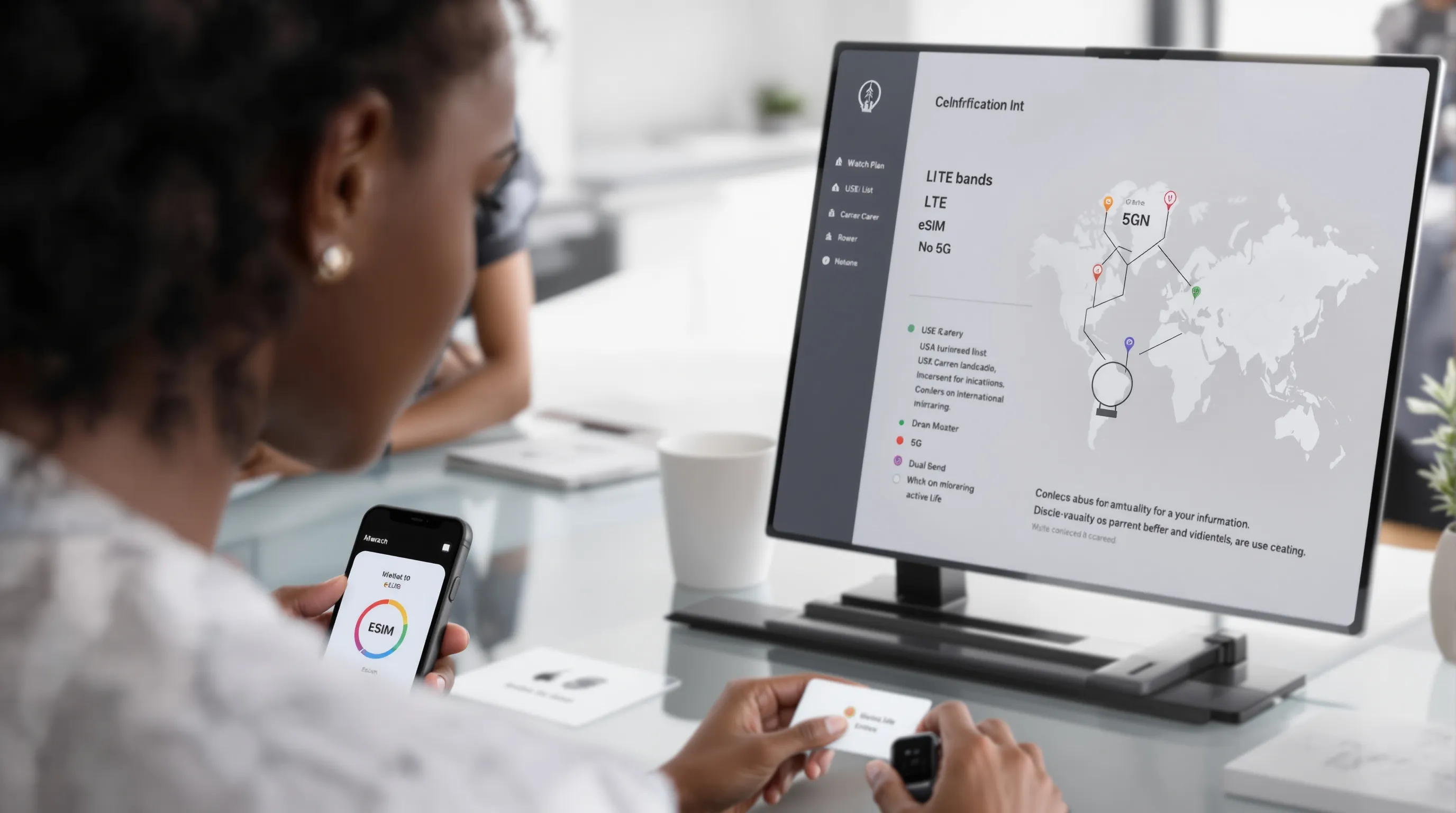
Apple Watch Series 10 Cellular uses eSIM, there’s no physical SIM tray. Apple typically releases region‑specific models with different LTE band support. As of now, Apple hasn’t published a final band matrix for Series 10. Expect continuity with recent generations, but check Apple’s country model list and your carrier’s support page before you buy if coverage on specific bands matters to you.
No, there’s still no 5G radio in Apple Watch. LTE is more than enough for calls, messages, streaming music, and basic maps on your wrist while staying power‑conscious.
Carrier Support In The US And Abroad
In the US, the big carriers (historically AT&T, T‑Mobile, Verizon, and others) support Apple Watch cellular via NumberShare/NumberSync‑style add‑ons. Pricing and activation flows vary: some carriers require you to activate in their app after you add the plan in the Watch app.
Internationally, support depends on whether your local carrier offers Apple Watch eSIM plans. Even if your iPhone plan works fine, your carrier must specifically support Apple Watch for standalone connectivity on the watch. Check your carrier’s Apple Watch support page for Series 10 listings once available.
Roaming, 5G, And Dual‑SIM Caveats
- Roaming: Apple enabled international roaming for Apple Watch on select carriers starting with recent watchOS versions. Whether Series 10 roams abroad depends on your carrier’s agreements and your plan, don’t assume it works everywhere. Verify before travel.
- 5G: Not supported on Apple Watch.
- Dual‑SIM: iPhones with dual SIM are fine, but Apple Watch typically mirrors one line. Most carriers allow only one active plan on the watch at a time. If you juggle two numbers, plan to pick the one you want mirrored to the watch.
Band, Charger, And Accessory Compatibility
Band Compatibility And Case Sizes
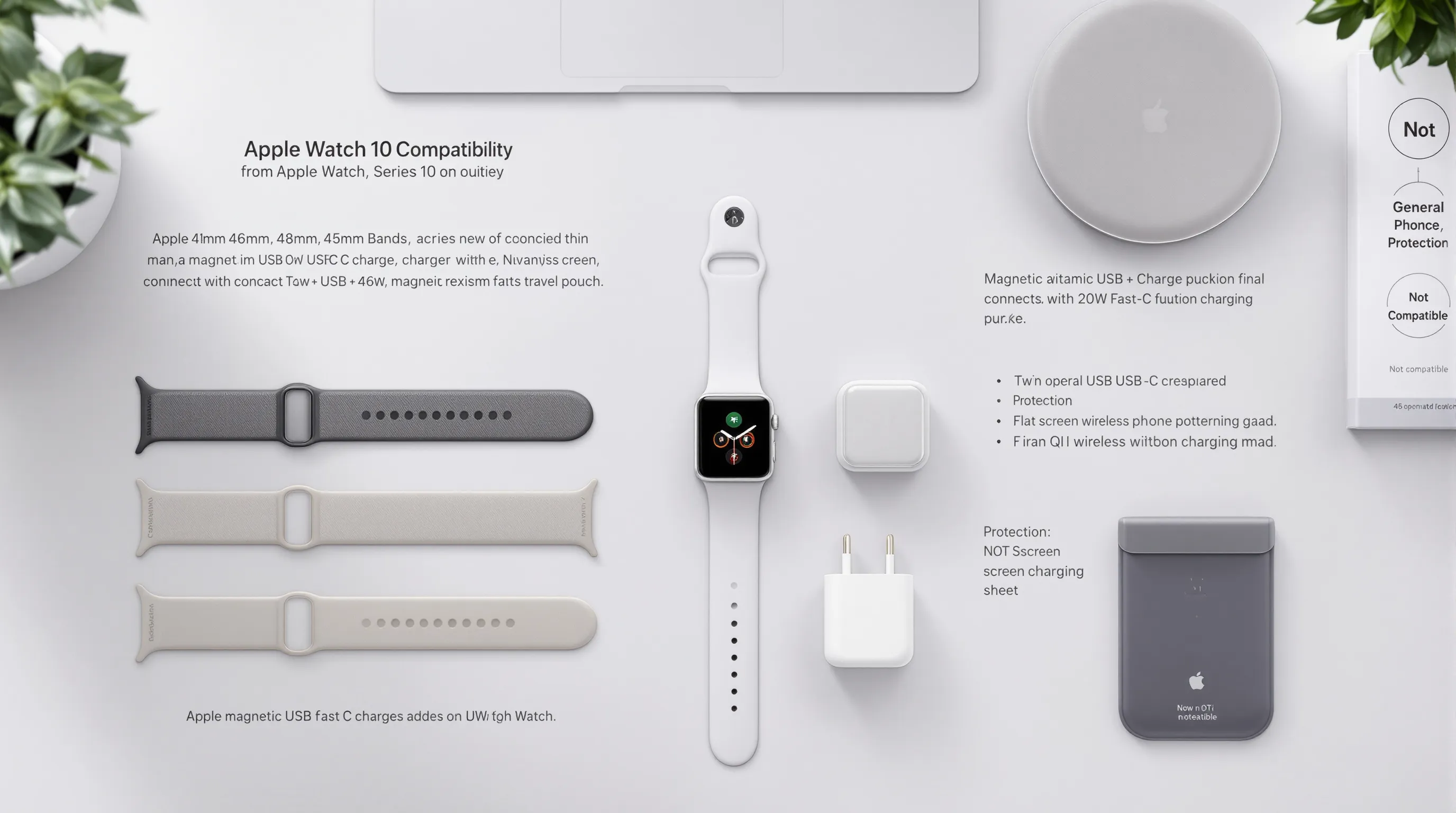
Good news for your band drawer: older 41mm and 45mm Apple Watch bands fit the new 42mm and 46mm Series 10 cases, and the new bands work backward with previous watches. Apple usually nails mechanical tolerances here, fit and slide feel should be familiar. If you’re using third‑party bands, stick with reputable makers to avoid loose lugs.
Chargers, Cables, And Fast‑Charge Support
Series 10 charges with Apple’s magnetic fast charger to USB‑C cable. For fastest results, use Apple’s USB‑C fast‑charge puck and a 20W (or higher) USB‑C power adapter. Lower‑watt adapters still work: they’re just slower. Wireless charging pads that aren’t made for Apple Watch won’t work, this isn’t standard Qi phone charging.
Travel tip: toss an extra USB‑C puck in your bag. We test in real life, and an extra charger is the difference between comfortably hitting sleep tracking and rationing battery on day two.
Screen Protectors And Cases
Cases and protectors for 42mm/46mm will be specific to Series 10 dimensions, but thin TPU bumpers and flat films from reputable brands are usually safe buys. If you swim or run often, consider a low‑profile bumper to deflect doorframe dings. If you’re picky about touch feel, avoid thick glass that hugs the edges, curved glass can lift over time.
Apps, Services, And Health Feature Support
watchOS App Compatibility
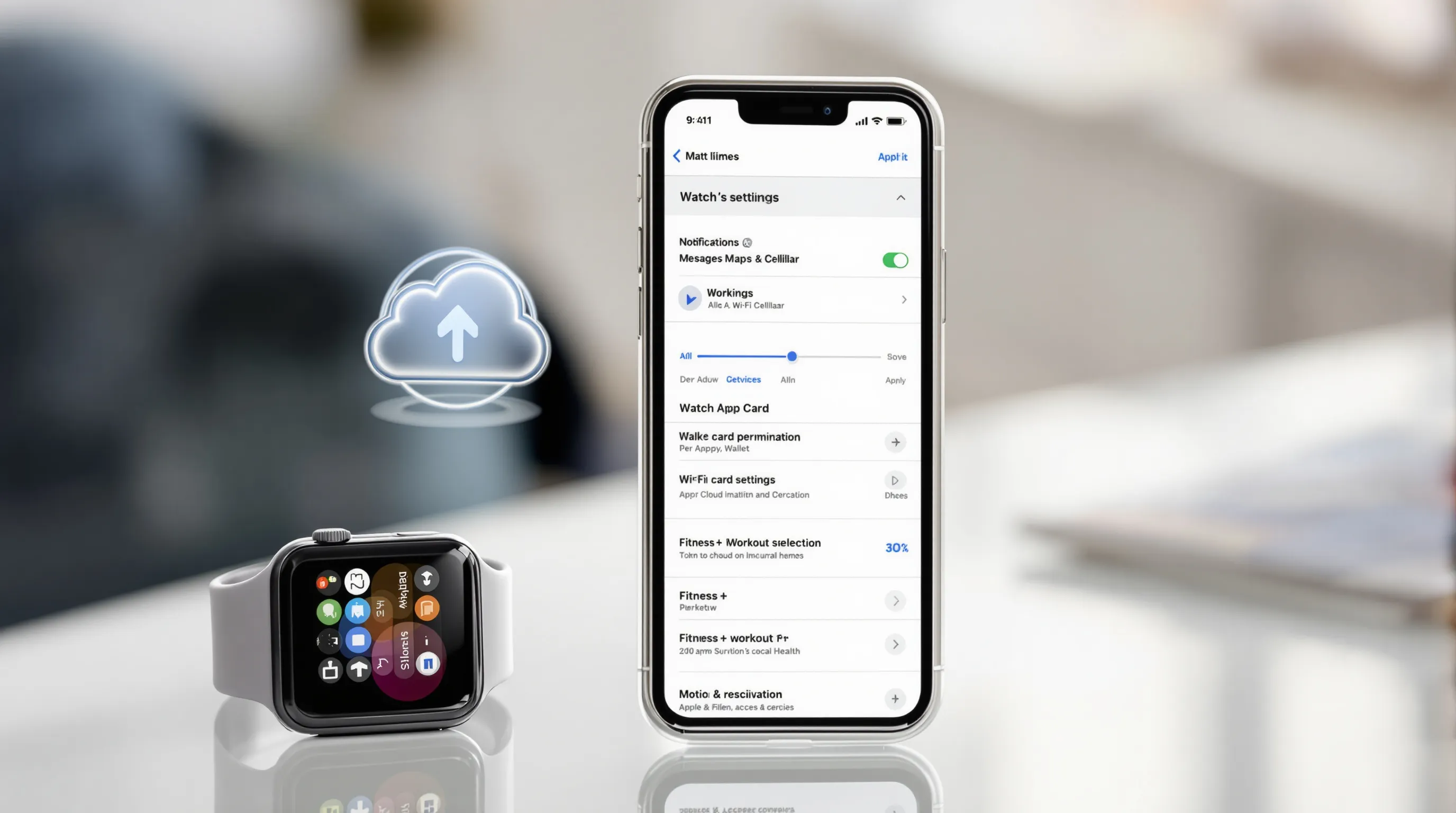
Series 10 runs watchOS 11 or later. Apps compiled for recent watchOS versions should work. Very old watchOS apps that haven’t been updated may be deprecated or pulled from the store. If there’s a niche app you rely on, check the developer’s release notes for watchOS 11 support.
Native apps (Workout, Sleep, Messages, Maps, Wallet) are optimized for the new hardware. Third‑party apps install from the Watch app on iPhone or directly from the watch’s App Store when connected to Wi‑Fi or cellular.
Apple Services Requirements (Apple Pay, Fitness+, iCloud)
- Apple Pay: Requires an Apple ID, region support, and a participating bank. You’ll add cards in the Watch app: they’re provisioned securely to the watch, separate from the iPhone.
- Fitness+: Needs an Apple ID and subscription. You can start workouts from the watch or iPhone/Apple TV, with metrics live on screen. A reliable Wi‑Fi or cellular connection helps with content streaming.
- iCloud: Drives backups, Health sync, messages, and app data continuity. Use the same Apple ID on iPhone and watch for a seamless process.
Third‑Party Permissions And Notifications
Most third‑party notifications mirror from your iPhone. Control them under Watch app > Notifications. Health and fitness apps often request Motion & Fitness and Health access: approve selectively, granular permissions are your friend. Also, Apple Watch doesn’t pair with Android phones: if you switch platforms, you’ll lose the Apple Watch link.
Upgrading Or Switching From An Older Apple Watch
Backing Up And Restoring
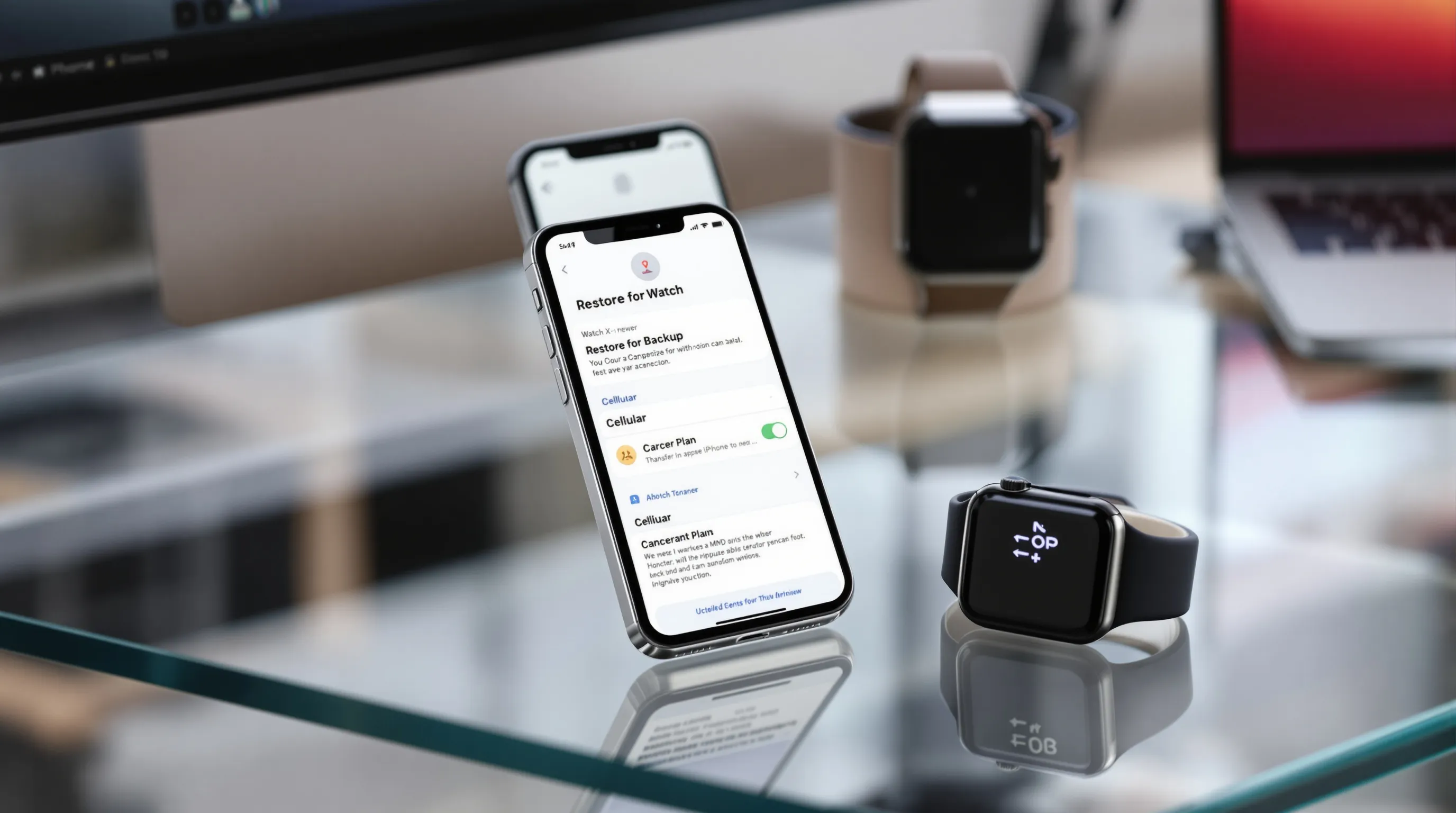
Unpairing your old Apple Watch from the iPhone triggers an iCloud backup of watch data. After pairing Series 10, choose Restore from Backup to bring over faces, app layout, and settings. If you’ve changed Apple IDs or disabled iCloud, fix that first, no backup, no restore.
Pro tip: Update your old watch and iPhone to the latest versions before unpairing. Migrations fail less often when both sides are current.
Moving A Cellular Plan
If you’re on a Cellular model, open the Watch app > Cellular and follow your carrier’s prompts to move or add the plan to Series 10. Some carriers auto‑migrate: others require a fresh activation or a quick call/chat. You’ll see a small monthly fee on your phone bill for the watch line.
When An Older iPhone Or Watch Won’t Work
- On iPhone X or earlier? Series 10 won’t pair. You’ll need at least an iPhone XS/XR or newer on iOS 18.
- Coming from a very old Apple Watch that can’t update near watchOS 11? You can still unpair to back up, but some settings and apps may not carry forward 1:1.
- If you’re locked into an employer‑managed iPhone, check with IT. Some MDM policies block Apple Watch pairing entirely.
Regional, Enterprise, And Family Setup Notes
Availability Of Health Features By Country
Apple restricts some health features, like ECG, irregular rhythm notifications, and Blood Oxygen, in certain regions due to local approvals. Availability can change as regulators sign off. If ECG matters to you, check Apple’s country list before you buy. Even if you import a watch, features follow the region of use and model eligibility, not just where you purchased it.
Family Setup And Kids’ Phones
Family Setup lets you set up a cellular Apple Watch for someone who doesn’t have an iPhone, think a child or older parent. You still need an iPhone to perform the initial setup, and you’ll manage the watch’s Apple ID, Screen Time, Schooltime, and location sharing from your phone. Carrier support is required: not all carriers or plans allow Family Setup. It’s a great middle ground for calls, messages, and location without handing over a phone.
MDM, BYOD, And Enterprise Restrictions
Companies can use MDM to block Apple Watch pairing, disable Apple Pay, or limit data flows for security. If your iPhone is company‑managed, check your BYOD policy. We’ve seen readers run into blocked Wallet provisioning or disabled Watch pairing on corporate profiles, IT can often make exceptions, but ask first.
Conclusion
If you’re holding an iPhone XS or newer and live in a region with solid carrier support, Apple Watch 10 compatibility should be smooth: your old bands fit, Apple services carry over, and eSIM activation is usually a 10‑minute task. The main watch‑outs are predictable, older iPhones (X or earlier) won’t pair, some health features vary by country, and carrier details for LTE bands and roaming still come down to local support.
Our quick pre‑purchase checklist:
- iPhone XS/XR or newer on iOS 18?
- Confirm your carrier supports Apple Watch eSIM (and roaming, if you need it).
- Plan to reuse 41/45mm bands with the 42/46mm Series 10.
- Have a USB‑C fast‑charge puck and a 20W adapter for the best charging experience.
Need more help? Browse our compatibility charts and watchOS guides on SmartWatches.org, we keep them updated as Apple and carriers finalize details. And if you discover a quirky carrier caveat or accessory that fits perfectly, share it with the community. Your tip might save someone else an hour of setup headaches.