
We lived with the Apple Watch workout experience for daily runs, strength days, and a couple of pool sessions, and here’s the short version: the Apple Watch Workout app is powerful out of the box, but it shines when you personalize it. Whether you’re new to the rings or chasing PRs, small tweaks to views, zones, and pacing go a long way. Below, we’ll show you what it tracks, the smartest setup steps, training features that actually help, and when a third‑party Apple Watch workout app is worth it. We’ll also cover quick fixes to the most common issues so your data stays clean and useful.
What The Apple Watch Workout App Tracks—And Why It Matters
The Workout app on Apple Watch logs the stuff you care about mid-session and long term: heart rate, pace, distance, calories, elevation, and time. Those core metrics power your Activity rings, Move, Exercise, and Stand, so every session contributes to your bigger streaks and trends. If you’re training with intention, advanced signals like VO2 Max (for aerobic fitness) and HRV (heart rate variability, a proxy for stress and recovery) help you gauge when to push or dial back.
Why it matters: consistent tracking turns single workouts into a narrative. Your weekly pace, rolling VO2 Max, and ring history can reveal progress (or fatigue) that a lone run can’t. In practice, we found the default metrics are enough for casual users, but runners and cyclists benefit from adding splits and elevation gain to the main screen so feedback matches goals.
Set Up And Personalize Your Apple Watch Workout App
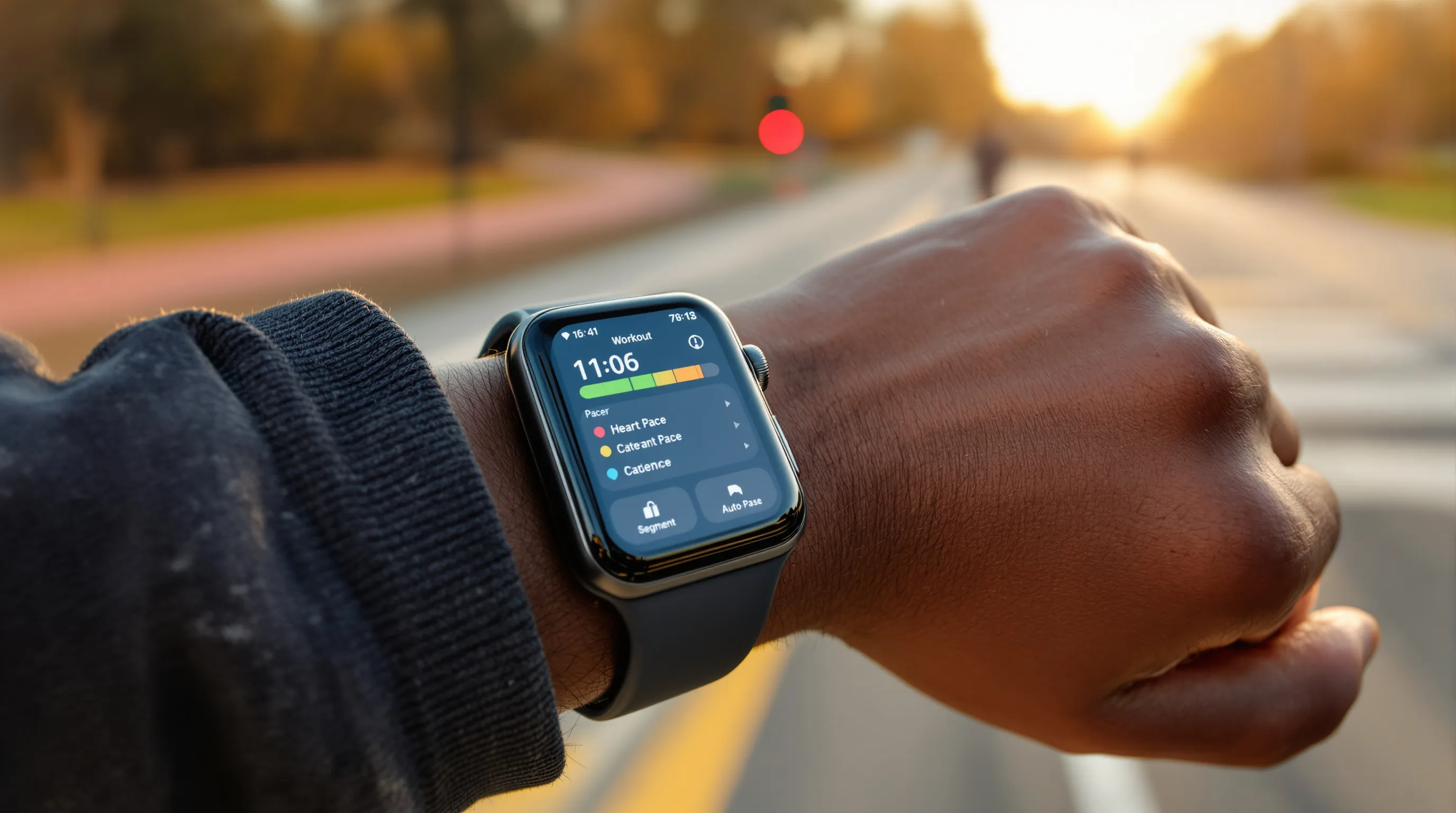
The redesigned watchOS 26 interface puts customization at your fingertips with four corner buttons on Workout screens, handy for changing metrics without diving into menus. Start with Workout Views: choose what appears on your primary and secondary screens (pace, heart rate zones, cadence, elevation, power, or rolling mile splits). If you care about consistency, enable Auto-Pause for stoplights and configure segments to mark repeats.
Custom Workouts are where structure lives. Build intervals with warm-ups, work/rest repeats, and cool-down targets. Set alerts for time, distance, pace, or heart rate zones so the Watch nudges you instead of you staring at your wrist. The Pacer feature helps you lock into a target pace, and Apple Music integration can auto-pair playlists or podcasts based on the workout type, nice for getting “go” energy without fiddling on the starting line.
Dial In Training Features You’ll Actually Use
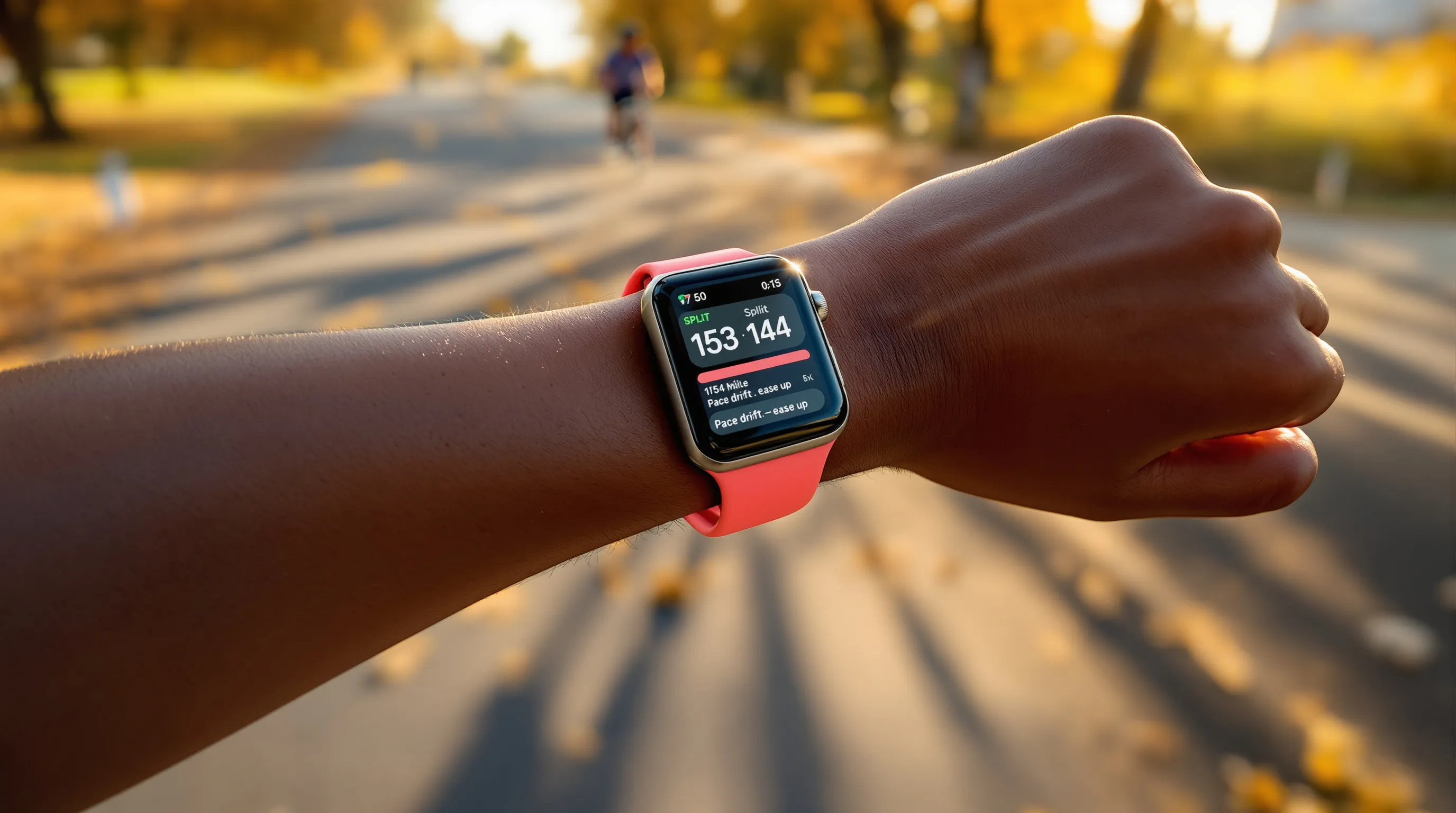
Workout Buddy, powered by Apple Intelligence, adds a friendly coach vibe. Before a session, it gives a quick pep talk based on your recent Activity rings and milestones. During a run or ride, it can announce splits and call out pacing drift. Afterward, it summarizes highs/lows like a Fitness+ trainer would. In testing, it kept us honest on easy days, useful when you tend to turn everything into a tempo.
Right now, Workout Buddy supports Outdoor/Indoor Run, Walk, Cycle, HIIT, and Strength. If you’re new, start with a simple zone-based alert and one pacing cue: more than that can feel noisy. Veterans can pair Custom Workouts with Buddy for interval sessions, think 6×3:00 at threshold with on-wrist audio prompts and haptics.
Get Better Accuracy: Sensors, Fit, And Calibration
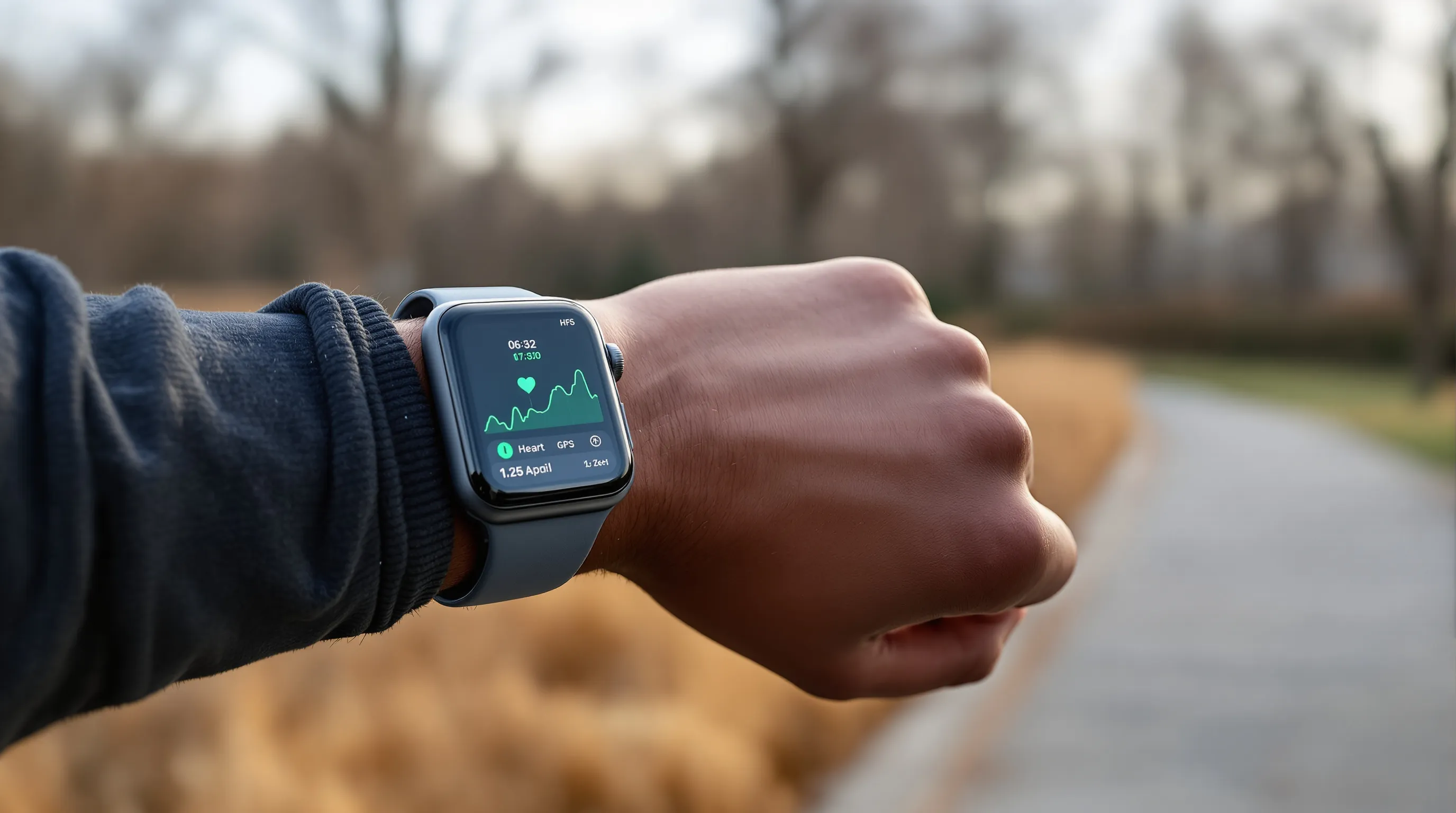
Accuracy starts with fit. Wear the watch a finger-width above the wrist bone: snug but not constrictive. Loose bands create heart rate spikes and dropouts, especially in chilly weather when perfusion drops. For fast intervals or heavy strength moves, a sport band or loop that resists slipping helps.
watchOS 26 brings improved heart-rate performance on newer hardware like Apple Watch Series 10. We saw steadier readings during surges, which benefits recovery-focused apps such as Motion and Athlytic. For pace and distance, run a few outdoor workouts with solid GPS to calibrate: over time, indoor treadmill estimates improve. Cyclists using power meters should still expect best precision from dedicated head units, but the Watch is plenty for casual rides.
Manage Battery Life For Short And Long Workouts
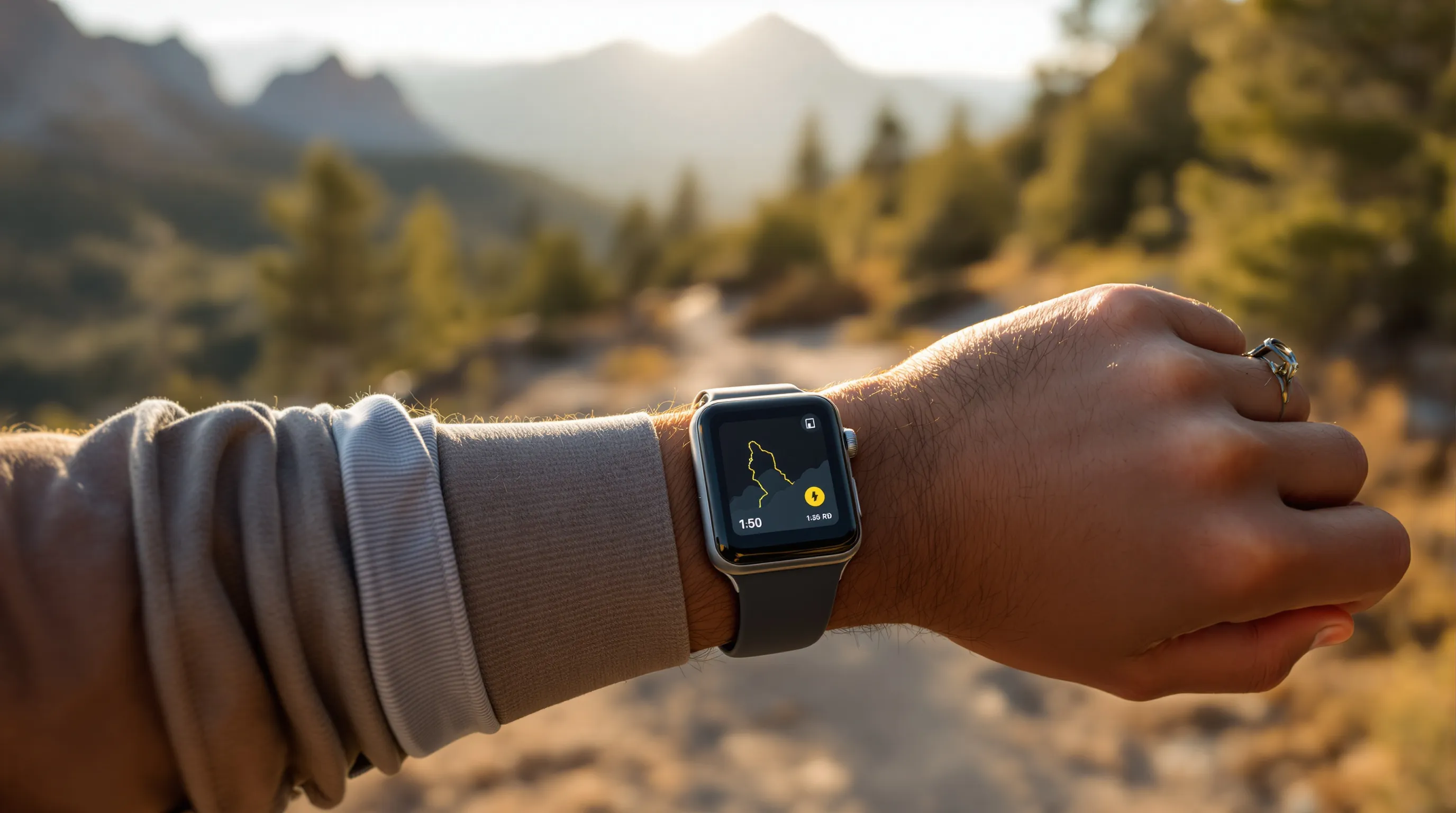
GPS is the battery hog. A 30–60 minute run barely dents newer models, but long rides, hikes, or races need a plan. Low Power Mode trims features like always-on display and background sensors to stretch runtime. If you’re going truly long, ultras or all-day hikes, apps such as WorkOutDoors are tuned for multi-hour tracking and clever map refreshes without torpedoing your battery.
Quick wins: lower screen brightness, reduce wake-on-wrist sensitivity, and pre-download music. Streaming plus GPS plus Bluetooth headphones stacks power draw. For indoor sessions tracked via motion sensors, battery use is minimal: consider saving your music streaming for the gym days instead of long GPS outings.
When A Third-Party Apple Watch Workout App Makes Sense
Apple’s default is excellent, but specialists will appreciate focused tools:
- WorkOutDoors: Deeply customizable data pages, breadcrumb trails, and spoken alerts, perfect for trail runners and endurance athletes.
- Strava: Multi-sport tracking and a huge community. Great for segments and social motivation.
- Nike Run Club: Clean, running-first design with guided runs and pacing prompts.
- Athlytic: Advanced analytics for load and readiness built on HRV and recovery signals.
- Motion: Inclusive challenges and gamification for daily movement streaks.
Plenty of people stack apps: Motion for everyday motivation, Hevy for lifting, and Nike Run Club for workouts, while the Apple Watch app Workout logs the core data into Apple Health for a complete record.
Troubleshooting: Fix Common Workout App Issues Fast
Seeing missing or duplicate workouts, GPS dropouts, or odd heart rate spikes? Start simple. Make sure the watch is snug, then toggle Bluetooth if headphones stutter or cues cut out. If a workout won’t sync to the iPhone, force-quit the Watch app on your phone, then reopen Fitness.
For GPS wobble: step outside for 30–60 seconds before hitting Start to acquire signal. If you use Workout Buddy, keep your iPhone nearby on first runs to ensure connectivity. Persistent spikes or flatlines usually trace back to loose fit, tattoos under the sensor, or cold skin: warm up the wrist or switch to an alternate band.
Conclusion
Core Metrics: Heart Rate, Zones, Pace, Splits, Elevation, And Power
Build your main screen around what drives decisions mid-workout. For runners: current pace, lap pace, HR zone, and cadence. Add elevation gain and power if you train on hills.
Health Tie-Ins: Rings, VO2 Max, HRV, And Recovery Signals
Close your rings, but watch trends: a rising VO2 Max and stable HRV usually signal improving fitness. Sudden HRV dips? Consider an easy day.
Outdoor vs. Indoor Profiles: GPS, Treadmill, Pool, And Open Water
Pick the right profile for better algorithms. Outdoor Run uses GPS: Treadmill leans on motion calibration: Pool Swim needs pool length: Open Water prioritizes GPS tracks.
Permissions And Privacy: Health Access, Location, And Motion
In Settings, confirm Health permissions, Location “While Using,“ and Motion & Fitness are enabled. Review what you share beyond Apple Health, especially if you connect to social apps.
Customize Views: Data Fields, Segments, And Auto-Pause
Arrange primary and secondary screens. Enable Auto-Pause for city running. Use manual segments to mark intervals or hills for cleaner splits.
Heart Rate Zones: Defaults, Custom Zones, And Alerts
Apple sets zones automatically, but customizing by lab test or a recent race is better. Add zone alerts to prevent “gray zone” creep.
Units, Audio Cues, And Haptics For Real-Time Feedback
Pick miles or kilometers, enable spoken splits, and keep haptics on for silent cues during races or crowded gyms.
Custom Workouts: Intervals, Warm-Ups, Cool-Downs, And Targets
Build structure: 10-minute warm-up, 6×3:00 at threshold with 2:00 easy, then a cool-down. Add pace or zone targets for each block.
Race Routes And Pacing: Staying On Plan
Load a Race Route and use Pacer to compare against your PR. Negative split plans pair nicely with lap haptics.
Strength, HIIT, And Multisport: Tracking Beyond Running
Use Strength or HIIT profiles with heart rate zones and set rest timers. Triathletes can string sports with Multisport for seamless transitions.
Apple Fitness+ Integration: Guided Sessions And Metrics Overlay
Start a Fitness+ class and see live heart rate, burn bar, and rings on-screen, great for accountability on off days.
Watch Fit And Placement: Band Choice, Tightness, And Skin Contact
Opt for a secure sport band or loop. Wear a notch tighter for intervals: loosen slightly for long, steady efforts.
Calibrate For Pace And Distance: GPS Settings And Route Tips
Do a few 20-minute outdoor runs in good GPS conditions. Avoid tall glass canyons when calibrating.
Signal Savers: Wrist Detection, Wrist Orientation, And Water Lock
Keep Wrist Detection on for accurate activity and safety features. Use Water Lock for swims to prevent accidental touches.
Low Power Mode: What You Lose And What You Save
You’ll save hours of battery by trimming always-on display and some background metrics. Trade-off: fewer data updates and visuals.
Screen Settings: Always-On, Wake Gestures, And Brightness
Set Always-On to dim, reduce wake sensitivity, and lower brightness for long GPS days, readable enough, battery friendlier.
Audio Trade-Offs: Streaming, Offline Music, And Bluetooth Accessories
Streaming costs battery. Download playlists offline and pair a single set of Bluetooth earbuds to reduce connection churn.
GPS Choices: Built-In vs. Phone-Assisted For Endurance Days
Built-in GPS is cleaner and autonomous. Phone-assisted can save watch battery if you’re okay carrying the phone.
Top Alternatives: Strava, Nike Run Club, WorkOutDoors, And Athlytic
Strava for social and segments, NRC for coached runs, WorkOutDoors for maps and data density, Athlytic for recovery/load insights.
Mapping And Navigation: When You Need Offline Maps And Breadcrumbs
Trail days or new cities? Use WorkOutDoors for offline maps and breadcrumb navigation so you can focus on effort, not turns.
Coaching And Analytics: Advanced Zones, Load, And Readiness
If you crave more guidance, Athlytic‘s readiness and load charts or NRC’s guided workouts add context beyond raw splits.
Sync And Sharing: Apple Health, Fitness, Strava, And Privacy Controls
Let Apple Health be the hub. Share selectively to Strava or others. Periodically review app access in Health > Sharing.
Missing Or Duplicate Workouts, GPS Dropouts, And Heart Rate Spikes
Snug the band, restart the Watch app, and confirm Location Services. Delete duplicates in Fitness: keep the cleanest GPS file.
Swimming Specifics: Water Lock, Stroke Detection, And Pool Length
Engage Water Lock, set accurate pool length, and expect stroke detection to improve after a few sessions as the Watch learns your rhythm.
Data Hygiene: Editing Workouts, Merging Activities, And Backups
Fix mislabeled sessions in Fitness, trim warm-up parking-lot wobble, and back up your iPhone so Health data (and glory) stays safe.
If you’re choosing just one takeaway, make it this: customize your Apple Watch app workout screens to match your goals, then let alerts and pacing handle the rest. You’ll spend less time staring at your wrist, and more time training on purpose.